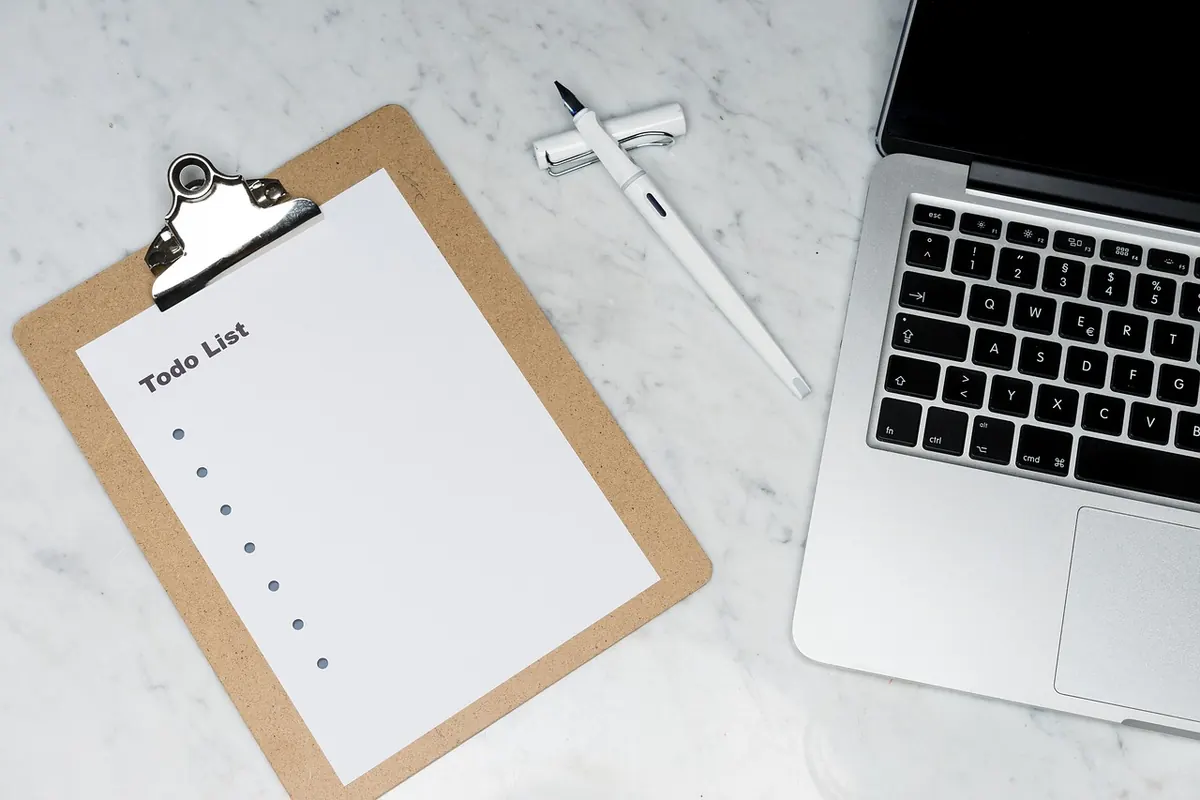
Why Your To-Do List Fails: 7 Common Planning Mistakes
A to-do list usually fails because of how it is written, not because of laziness. Here are seven common...


A cluttered digital workspace is rarely a sign of laziness. It is what happens when saving something takes one second and sorting it takes ten. Downloads pile up, tabs multiply, and the desktop becomes a shelf for half-finished thoughts. You do not need a month of discipline to fix it. One focused day, worked through in the right order, is usually enough to get from chaos to calm — and to leave behind a few rules that stop the mess creeping back.
Most decluttering attempts fail because the goal is a perfect system. Aim for a working one instead. Before you touch anything, decide that every item has four possible destinations:
Work in blocks of 25 to 50 minutes with a timer. Resist opening files just to check them; the moment you start reading, you are no longer tidying. If a decision takes more than five seconds, drop the file into a Decide Later folder and keep moving. You will deal with that folder at the end of the day, once the easy wins are done. If you are unsure how long to keep financial or legal records, check the rules that apply to you or ask an accountant.
One more rule helps: do not create a new folder for a single file. If a category has only one resident, put it in the closest parent folder and let search find it later. Folders should reduce choices, not multiply them.
The Downloads folder is the easiest place to build momentum, because so little of it matters. Sort by date and work from the oldest file forwards.
Installers, disk images and setup files can nearly always go — you can download them again if you ever need them. Screenshots taken to send one message have done their job. Anything worth keeping should be renamed and filed in the same motion. Put a date first and a short description after, so the files sort themselves: 2025-02-oakwood-invoice.pdf, 2025-04-bathroom-quotes.xlsx.
Three levels of folder are plenty: a broad area, a project or year, then the file itself. Avoid folders called Misc, Stuff or New folder. That is where things go to be forgotten.
If you find duplicates, do not compare them side by side unless you have to. Keep the newest version, or the one with the clearest name, and delete the rest. For photos and media, use the date taken rather than the date downloaded; it makes old folders far easier to browse.
Aim for a desktop that holds nothing but the folders and shortcuts you use every day. Everything else has a home elsewhere; the desktop is a launchpad, not a store.
Screenshots are usually the main offender. Change where they save, and give them a folder with monthly subfolders so they never land in the middle of your work again. If files have been collecting there for years, sort by type first — images, documents, installers. It is much faster than dealing with them one at a time.
Pin only what you open most days. A dock of eight icons is quicker to use than one of thirty, and it stops you hunting through a row you no longer read.
Tabs feel like a to-do list, which is why they are so hard to close. But an open tab is a poor reminder: it slows the browser, drains memory and hides the page you actually needed.
Try a three-pass triage:
For tabs you genuinely need every day, use pinned tabs or a start page rather than leaving them open. If your browser supports tab groups, name them by project and collapse the ones you are not using. The point is not zero tabs forever; it is that every open tab has a reason to be there.
Folders are for grouping, but search is for finding. A good naming convention beats a clever folder tree almost every time. Use consistent words for the same kind of document — Invoice, Receipt, Contract, Proposal — and include the year or client name where it helps. Then you can search for “invoice oakwood 2025” instead of remembering which folder you chose six months ago.
If you use a tool that supports tags or saved searches, set up a few for the things you look up often: this month’s receipts, active client projects, reference material. Keep the list short. A search system you cannot remember is just another folder you will forget to open.
One focused day gets you to a clean slate. Ten minutes a week keeps it that way. Choose a regular slot — Friday afternoon works well — and do the same four things:
This reset is not a second big declutter. It is a small boundary that stops the same mess from rebuilding. If you miss a week, do not turn it into a project; just do the next ten minutes when you can.
You do not need a perfect system. You need one you will actually use on a Tuesday afternoon.
By the end of the day, the aim is simple: Downloads is empty, the desktop shows only what you use, tabs are closed or saved with intent, and the next ten minutes of maintenance are already scheduled. That is not just a tidier computer. It is a quieter place to think.
Photo: Engin_Akyurt / Pixabay
A to-do list usually fails because of how it is written, not because of laziness. Here are seven common...
Five practical checks for chair, screen, keyboard, lighting and breaks that make a UK kitchen table...
A practical guide to the Pomodoro Technique: how the 25-minute work cycle works, why it helps you start,...